

Tags: Notepad++; Source code; Edit; Software
Save time using Notepad++ to create code for your projects. This topic explains the common functionalities of Notepad++ that technical communicators use in projects such as editing or viewing XML or DITA files.
For version v7.5.9 (Windows 64-bit and Windows 32-bit) or higher.
This article is about the software application Notepad++. For notepad software, see external link: Notepad software (disambiguation).
About Notepad++
Notepad++ is a free, open-source code editor. It uses minimal computer resources, making it a fast and powerful editor. You can use Notepad++ for everything from storing short text to advanced coding. It is optimized for programming languages, making it ideal for coding in languages like XML, HTML, and CSS.
The common code-based features of Notepad++ that will help you as a technical communicator are:
Open a source code file
There are many ways to open a source file using Notepad++. Outlined below are the two most common methods. Each time you open a file, it will open in a new tab. Notepad++ does not close any previous files unless instructed by you.
⚠️ Warning: It is not recommended to change the default file association to Notepad++. This may cause your files to behave incorrectly.
Open using Drag and Drop
- Open Notepad++.
- Using Windows Explorer, drag and drop the file into Notepad++.
- Outcome: The file is open in Notepad++.


Open using Windows Explorer
- From Windows Explorer, select the file you want to open. n
Note: If the file was received as an email attachment, external link: download the attachment to your computer.
- Right-click on the file.
- In the context menu, select Edit with Notepad++.
- Outcome: The file is open in Notepad++.


Enable syntax highlighting
When working on your source code, Notepad++ will highlight the syntax, i.e. reserved words, for your source code. This functionality helps improve the readability of your code. Notepad++ supports syntax highlighting in external link: 78 programming languages.
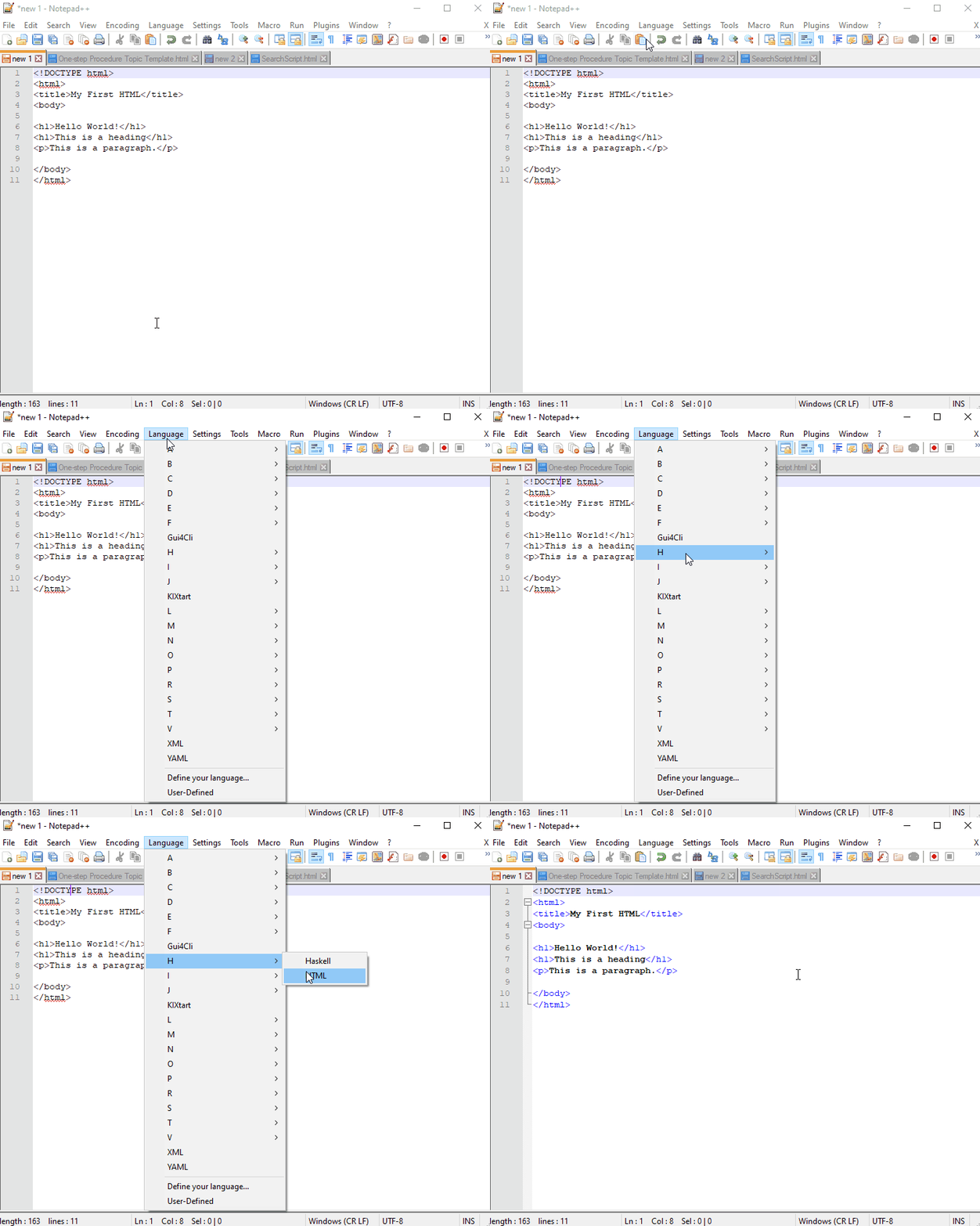
- From the menu bar, select Language.
- Languages are listed in alphabetical order. Some languages are nested under the first letter to save space. Select the programming language name to apply the syntax highlighting, e.g. HTML.
- Outcome: The file displays the syntax formatting for your source code.
Note: If your language is not listed, Notepad++ supports user-defined languages.

Save your programme
If you are saving your file for the first time, you will need to save it to the correct extension.
Note: If you have enabled syntax highlighting, the Save as type will match the syntax highlighting you selected}.
- Select File > Save As
- Choose a file location, such as My Documents or This PC, to store your file.
- In the File name box, enter a new name for the file.
- In the Save as type list, select the file format you want to save the file. For example, click Cascade Style Sheets File (*.css) to save a CSS file.
- Select Save.
- Outcome: The file is saved with the correct file extension.


See also
For additional help and support, check out:
Notes and references
Baker, M. (2013) Every Page Is Page One, XML Press: Laguna Hills, CA.
Ho, D. (2021) What Is Notepad++ [online],Notepad-plus-plus.org, available: external link: https://notepad-plus-plus.org/ [accessed 1 Mar 2021].